
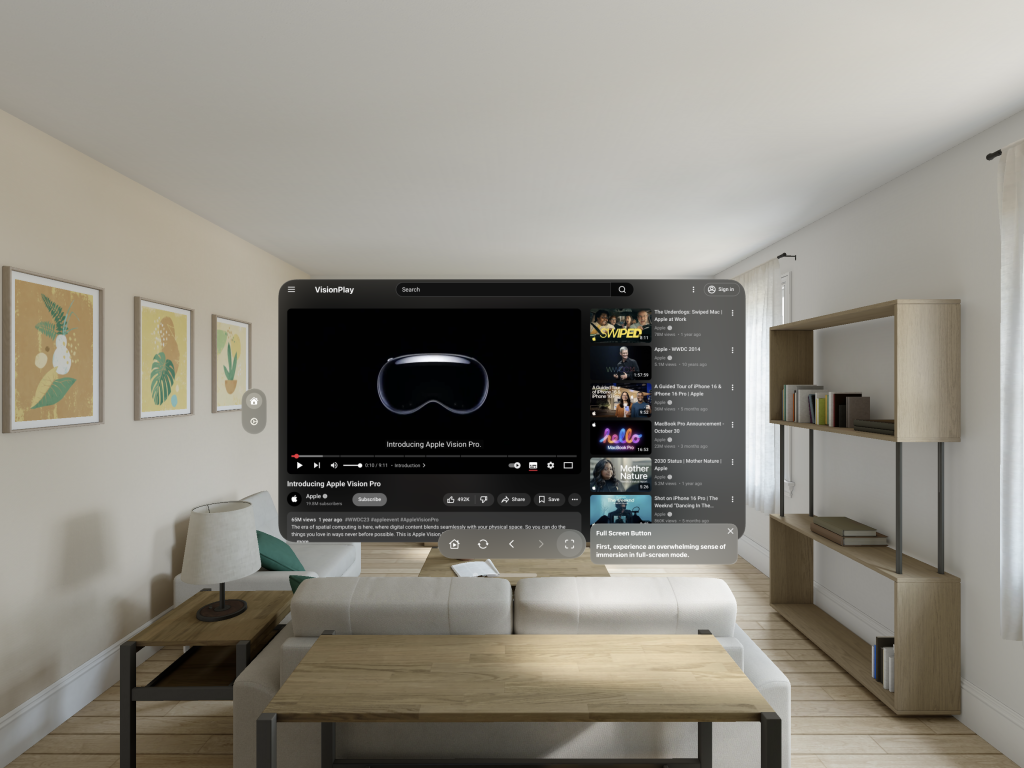
1. After searching for a video on the home screen and moving to the video detail page, the controller’s full-screen button at the bottom of the screen will be activated.
Tap the full-screen button.
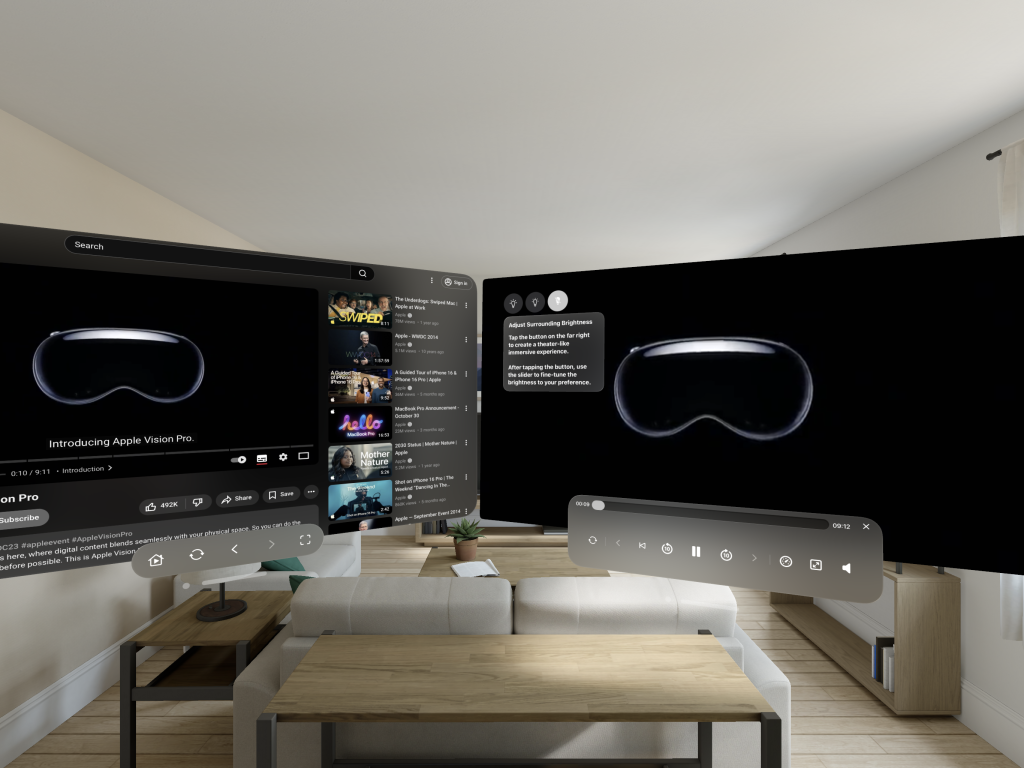
2. The full screen will appear next to the home screen.
You can enjoy the video in full screen while reading the video details and comments on the home screen.
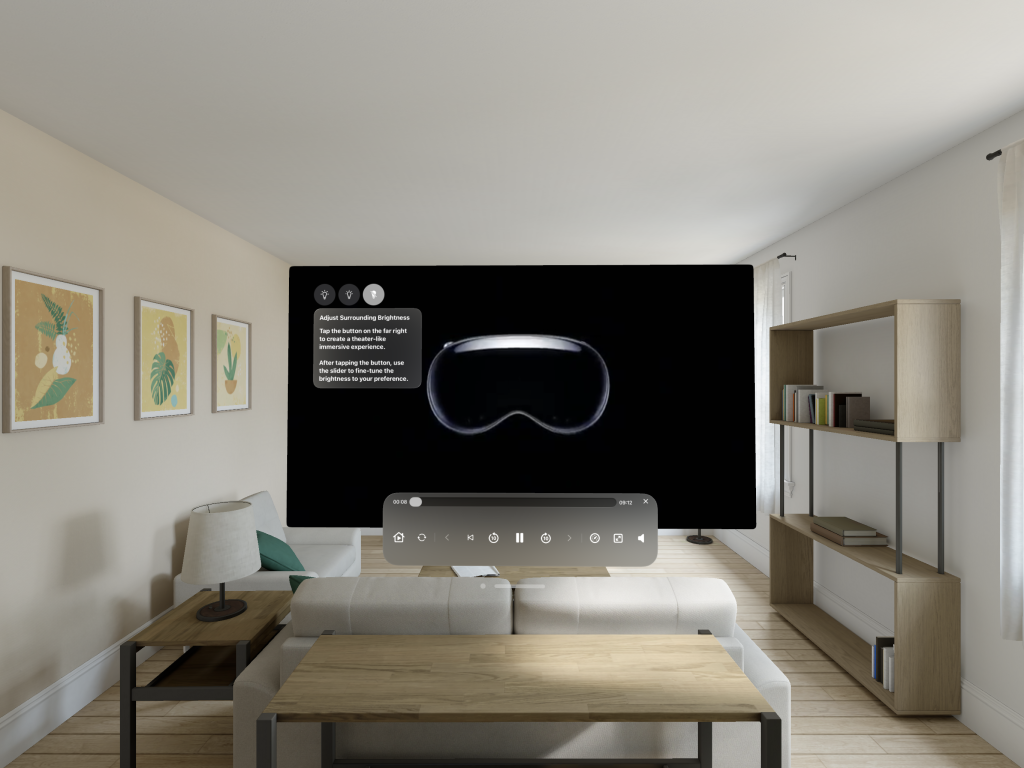
3. For a more immersive experience, you can close the home screen and go full screen only. To redisplay the home screen, tap the home button that appears to the left of the full-screen controller.
Three buttons will appear in the upper left corner of the full screen. These buttons allow you to set the ambient brightness in three levels.
First, tap the button on the far right to make the surroundings completely dark.
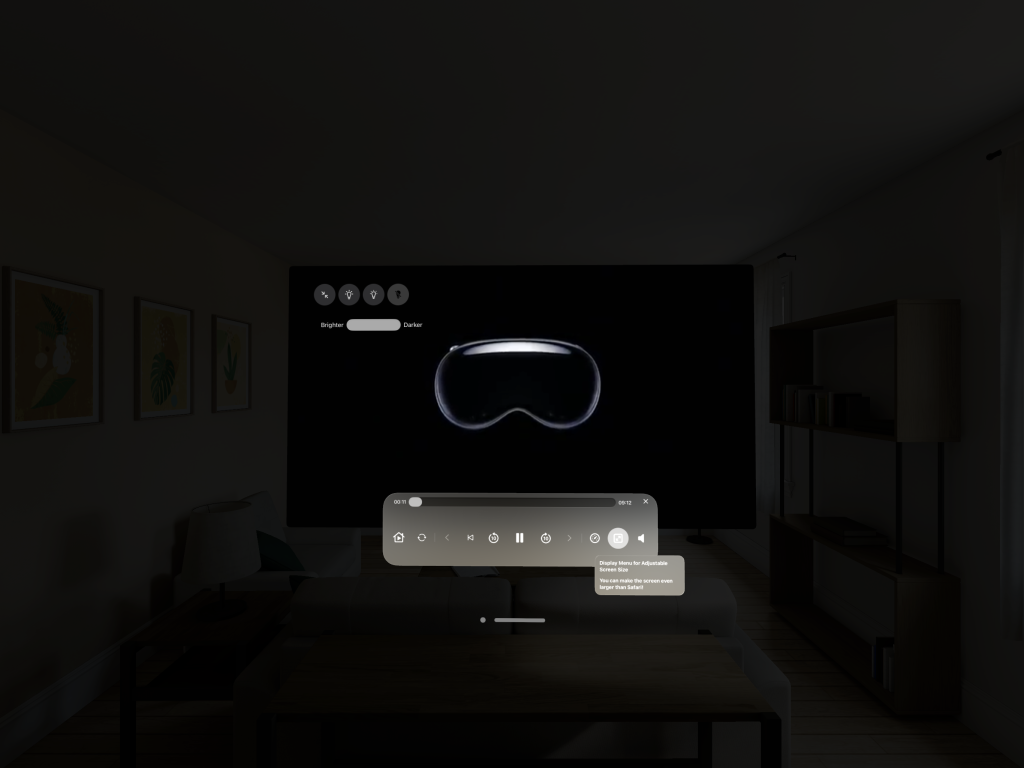
4. The immersive mode is switched and the surroundings become pitch-black, increasing the sense of immersion!
After tapping the rightmost button, a slider will appear so you can adjust the brightness to your liking.
To exit from immersive mode, tap the leftmost button.
Next, tap the second button from the right on the controller to activate the screen size adjustment menu.
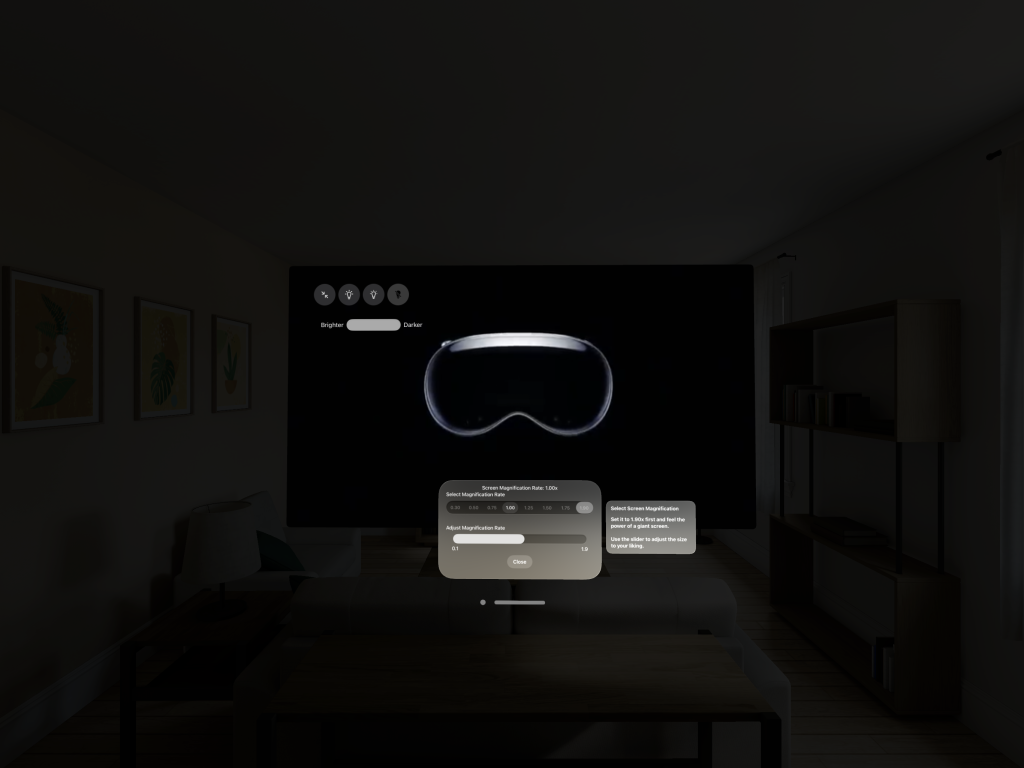
5. The screen size adjustment menu will appear.
Select the screen size magnification.
First, select 1.9 for the ultra-large screen to experience a larger screen than Safari.
The slider allows you to freely adjust the screen size to your preference.
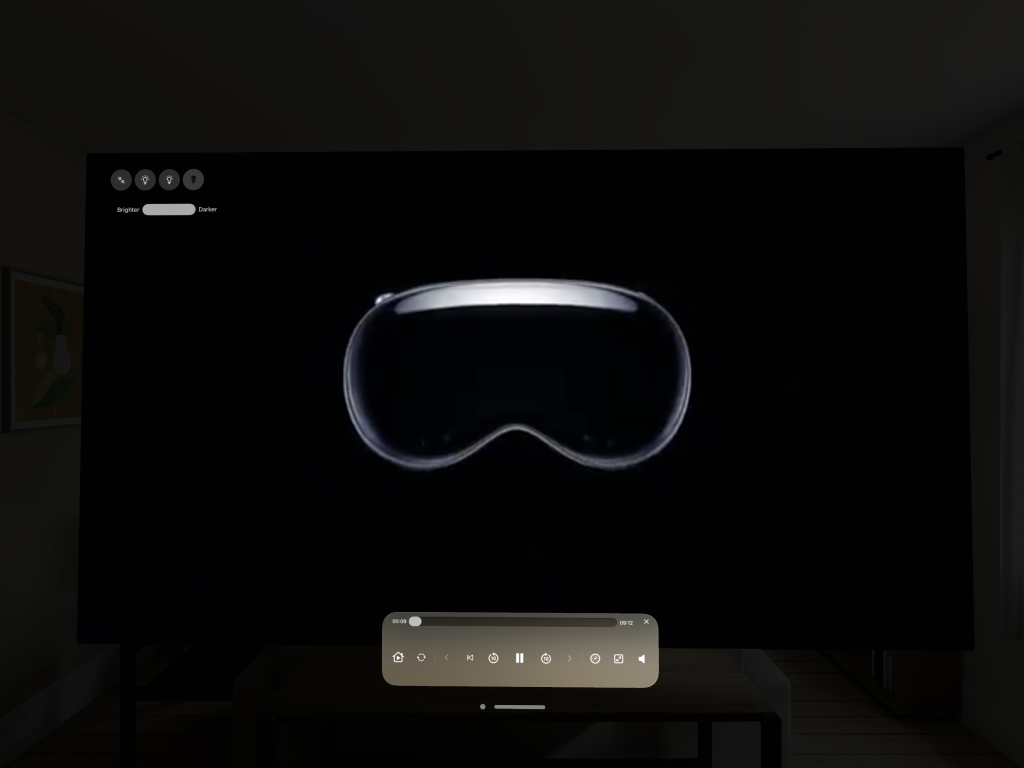
6. Selecting 1.9 will give you an ultra-large screen.
Then adjust the screen size to your liking and enjoy an immersive video experience.