
基本使用

This image has an empty alt attribute; its file name is Simulator-Screenshot-Apple-Vision-Pro-2025-02-12-at-17.52.31-1024x768.png

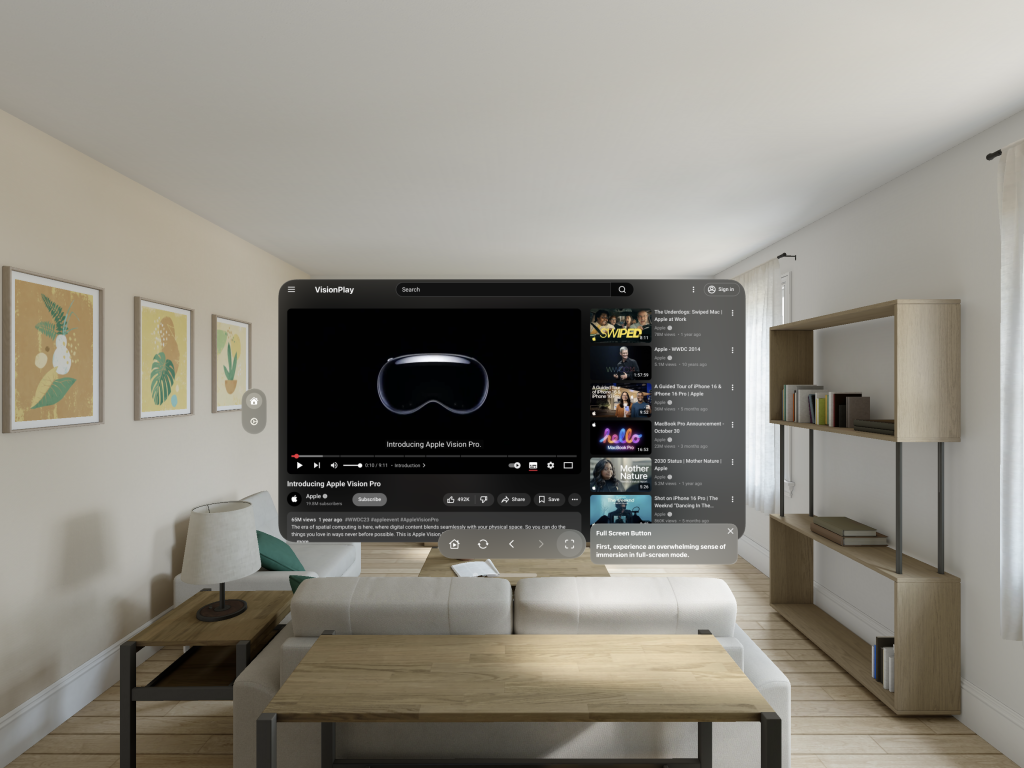
1. 在主畫面上搜尋視頻並移動到視頻詳細頁面後,控制器的全螢幕按鈕將會被啟用。

點擊全螢幕按鈕。
This image has an empty alt attribute; its file name is Simulator-Screenshot-Apple-Vision-Pro-2025-02-12-at-17.54.36-1024x768.png

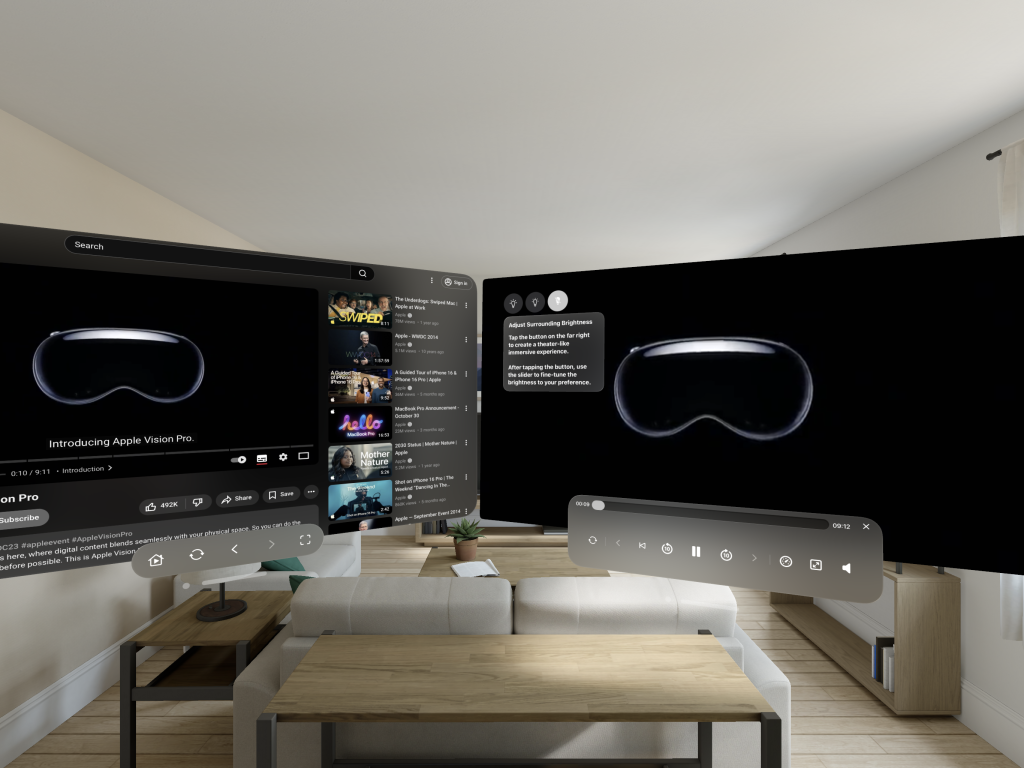
2. 全螢幕將出現在主畫面旁邊。

您可以在全螢幕中享受視頻,同時在主畫面上閱讀視頻詳細信息和評論。
This image has an empty alt attribute; its file name is Simulator-Screenshot-Apple-Vision-Pro-2025-02-12-at-17.55.33-1024x768.png

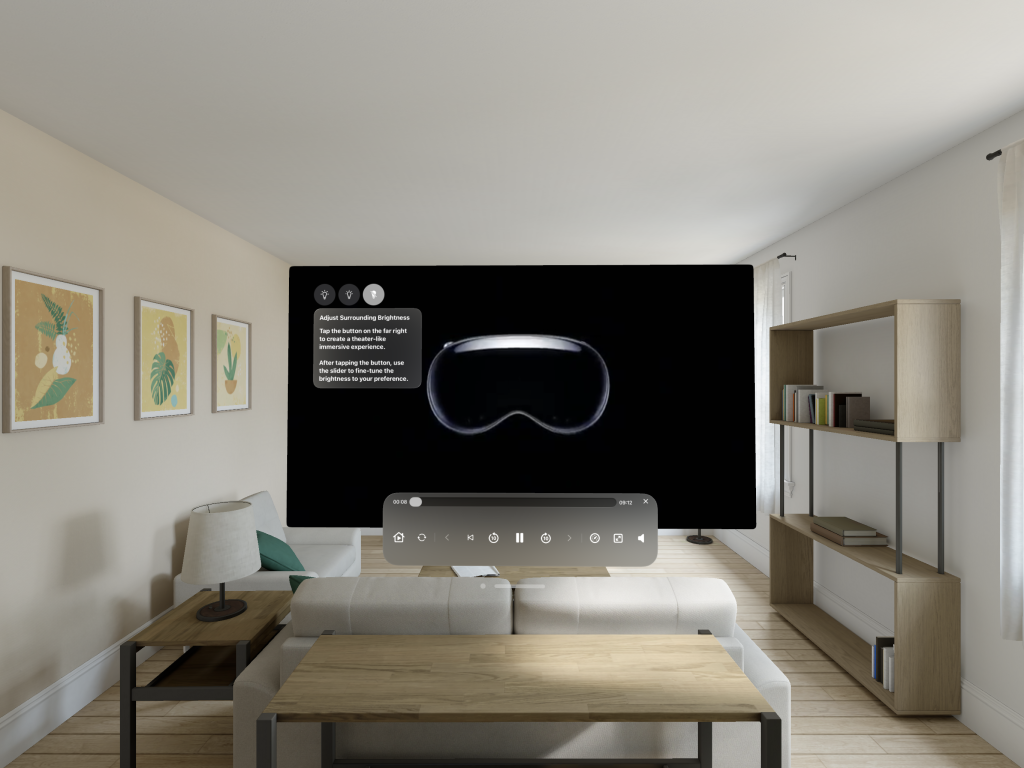
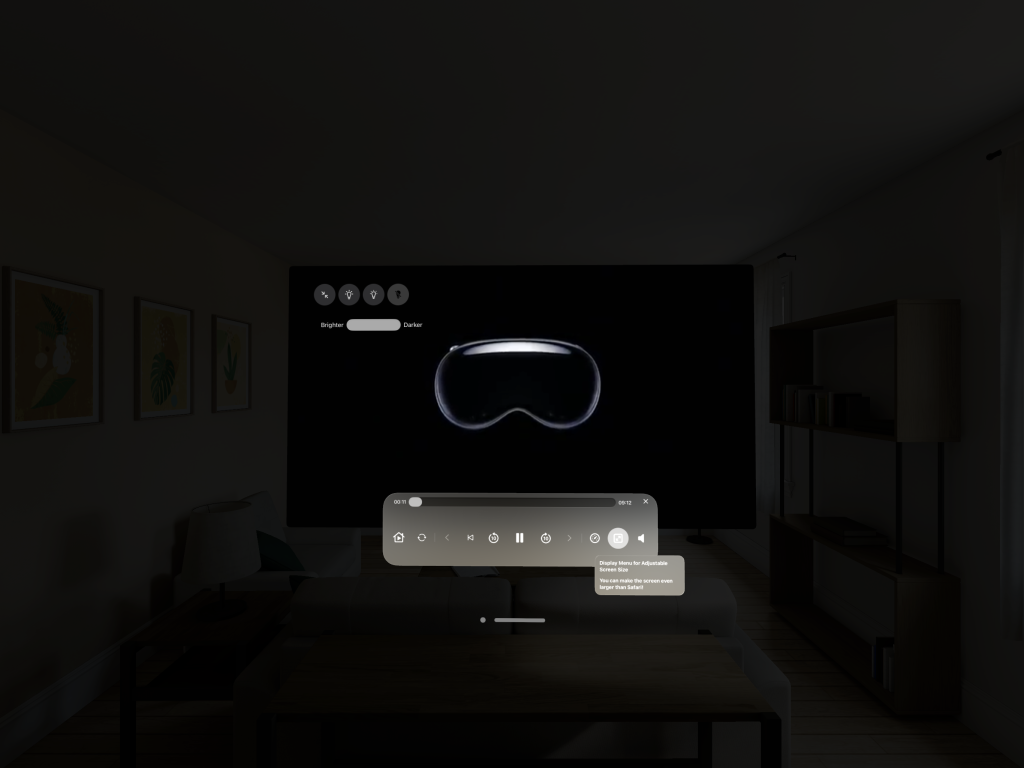
3. 為了獲得更沉浸的體驗,您可以關閉主畫面並僅使用全螢幕。要重新顯示主畫面,請點擊出現在全螢幕控制器左側的主按鈕。

三個按鈕將出現在全螢幕的左上角。這些按鈕允許您將環境亮度設置為三個級別。

首先,點擊最右側的按鈕,使周圍環境完全黑暗。
This image has an empty alt attribute; its file name is Simulator-Screenshot-Apple-Vision-Pro-2025-02-12-at-17.56.31-1024x768.png

4. 沉浸模式已切換,周圍變得一片漆黑,增強了沉浸感!

在點擊最右側的按鈕後,將出現一個滑塊,您可以根據自己的喜好調整亮度。

要退出沉浸模式,請點擊最左側的按鈕。

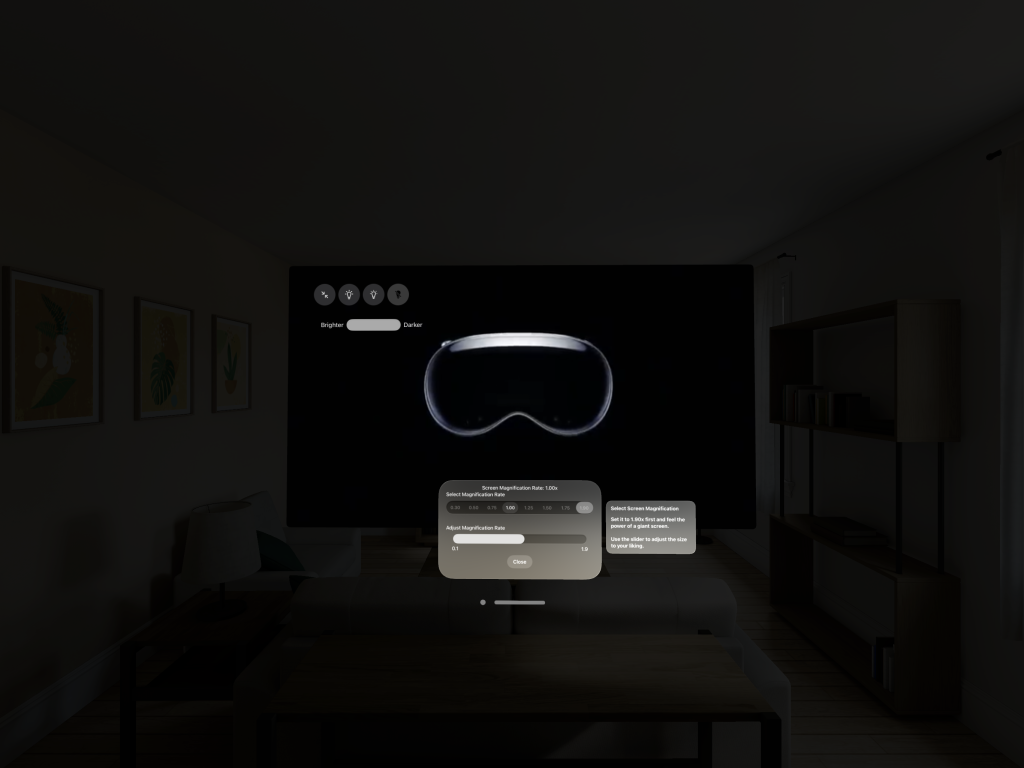
接下來,點擊控制器上從右側數來的第二個按鈕以啟用螢幕大小調整菜單。
This image has an empty alt attribute; its file name is Simulator-Screenshot-Apple-Vision-Pro-2025-02-12-at-17.57.42-1024x768.png

5. 螢幕大小調整菜單將出現。

選擇螢幕大小放大。

首先,選擇1.9以獲得超大螢幕,體驗比Safari更大的螢幕。

滑塊允許您根據自己的喜好自由調整螢幕大小。
This image has an empty alt attribute; its file name is Simulator-Screenshot-Apple-Vision-Pro-2025-02-12-at-17.59.10-1024x768.png

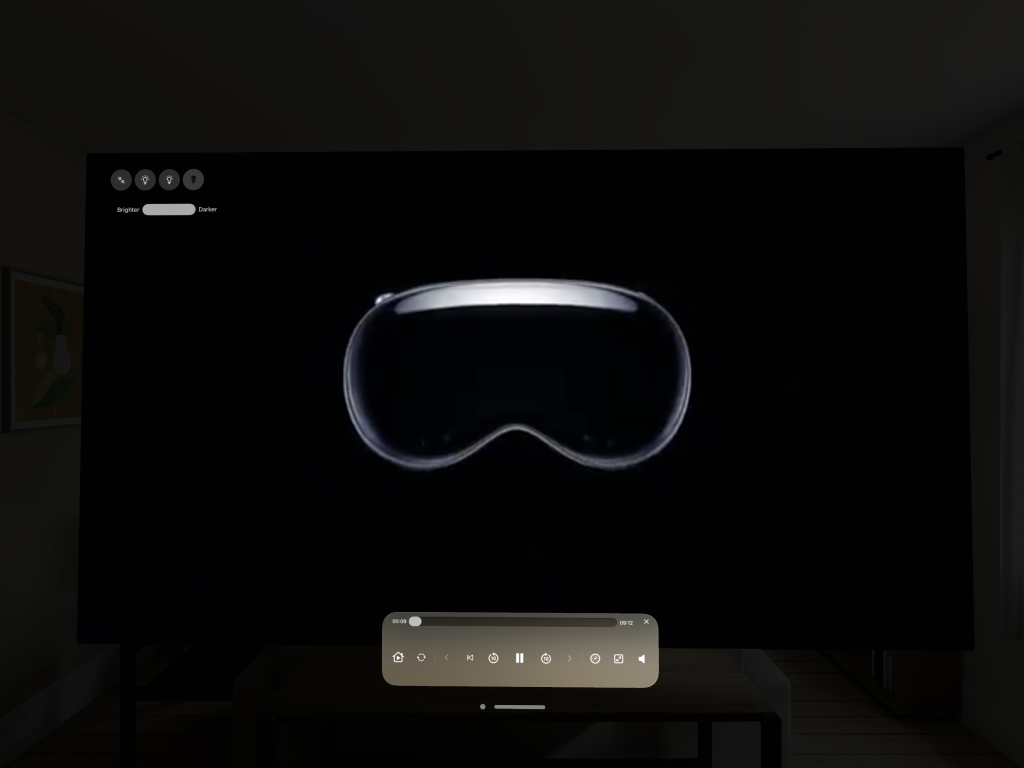
6. 選擇1.9將為您提供超大螢幕。

然後根據您的喜好調整螢幕大小,享受沉浸式視頻體驗。
標題和URL已復制